How To Use TAIKOLLER Options
0. Download TAIKOLLER Options Software and Firmware
V2.5 Update Notes:
- Firmware, solve the bug that it does not work properly when connected to PS4;
- Firmware, solve the bug of wrong response in some specific situations;
- Options V2.5, solve the bug that it cannot work properly in Windows 7.
1. What is TAIKOLLER Options
TAIKOLLER Options is a software designed by DAOdesign team, which can easily adjust the parameters of TAIKOLLER. You can adjust the parameters to make TAIKOLLER more comfortable to use.
2. How to Use
2.1 Interface
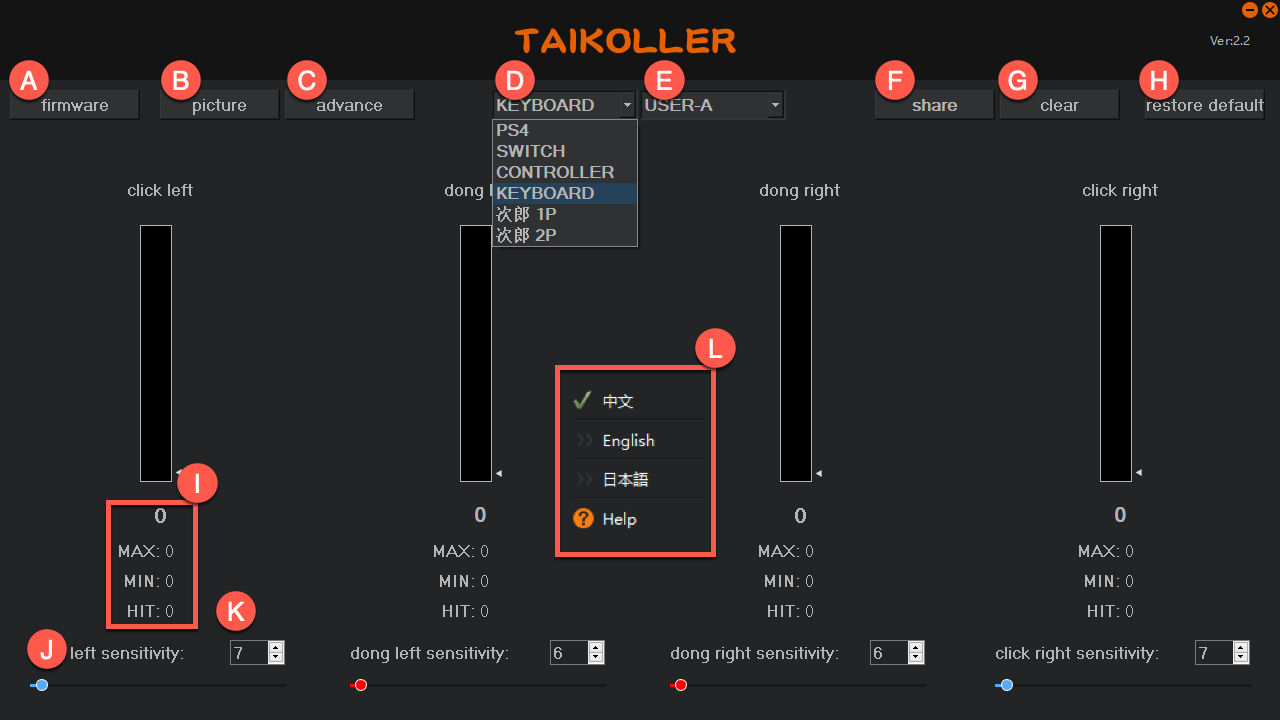
| No. | Function Description |
|---|---|
| A | Pop up update firmware window |
| B | Pop up custom picture window |
| C | Pop up advanced settings window |
| D | Switch between different modes |
| E | 3 groups of different sensitivities can be saved, which is convenient for dealing with different types of drum sticks or the usage habits of friends |
| F | Automatically generate setup images for easy posting on social media |
| G | Clear statistical data, you can use it arbitrarily |
| H | Restore factory settings, use with caution!!! |
| I | Display the current tapping strength and tapping quantity. When the tapping force is less than the threshold, no statistics will be made |
| J | Set the threshold value. It is recommended to be less than 20 |
| K | You can drag the slider to set the threshold, the function is the same as J |
| L | Click the right mouse button to display the language switching menu. Supports English, Japanese, Chinese. |
2.2 Firmware
Drag the firmware file
Drag the firmware
*.skystarfile to this window.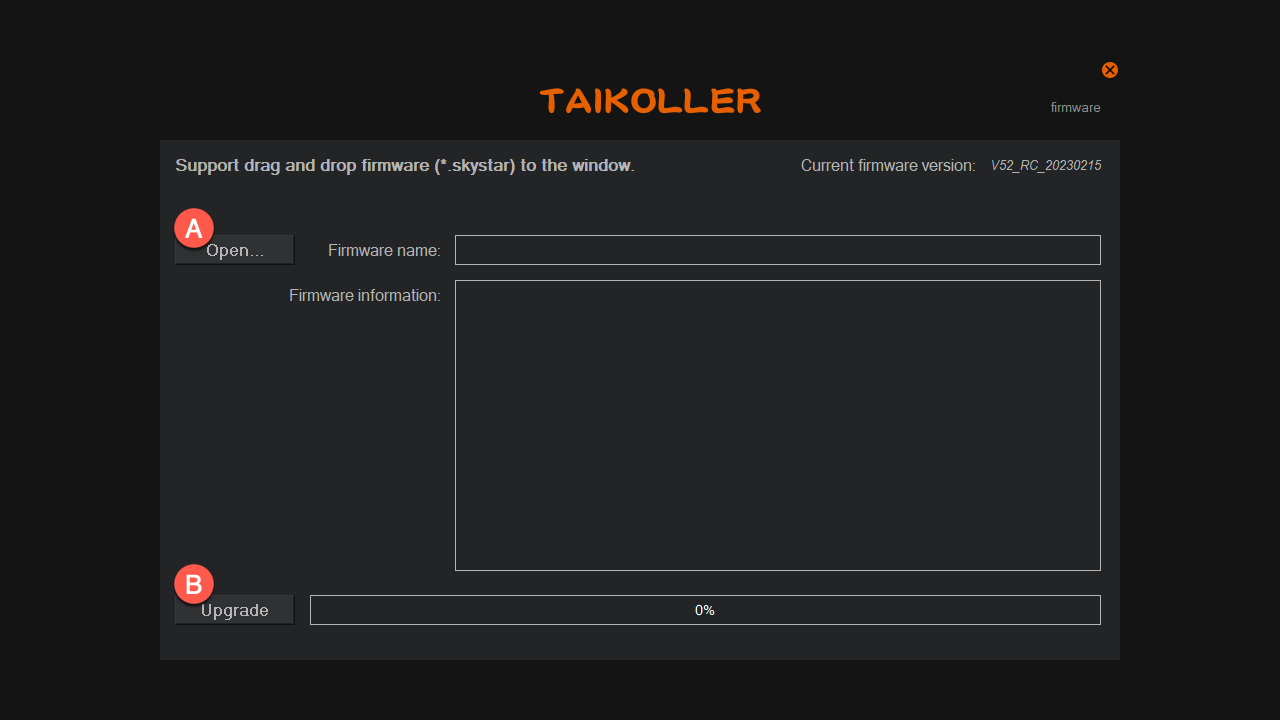
Click Upgrade
Click Upgrade to start the update.
2.3 Picture
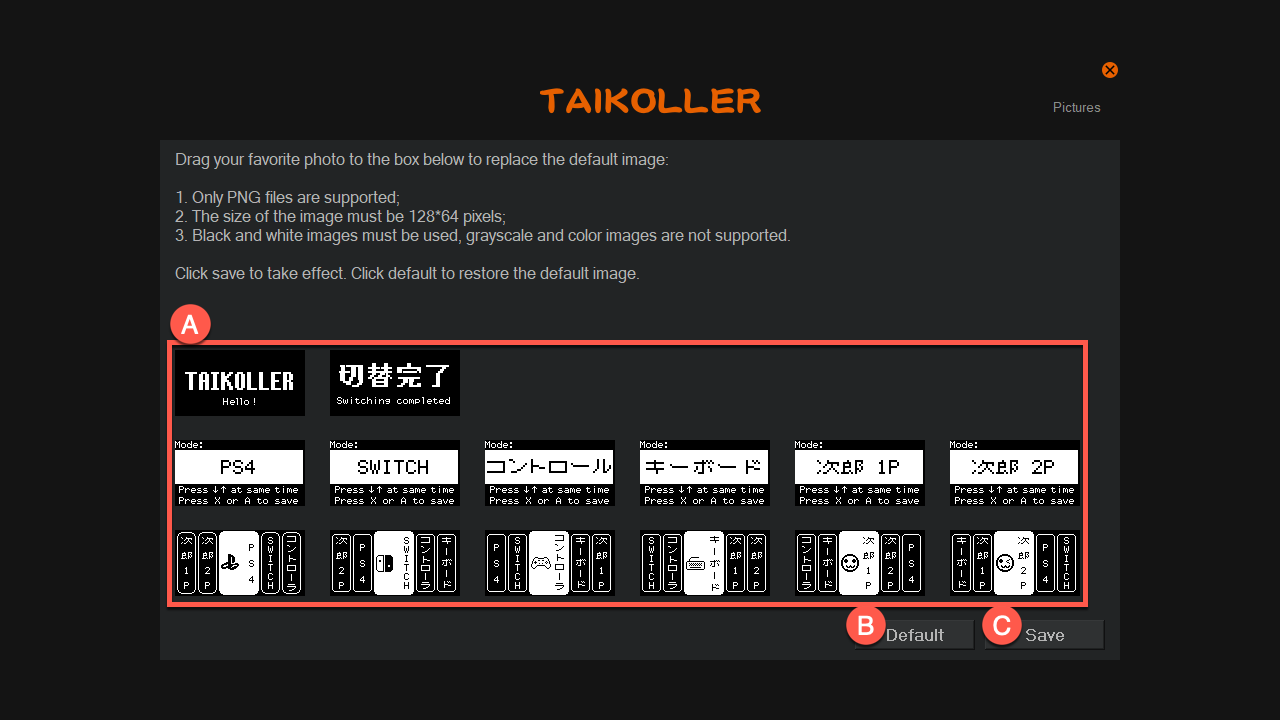
| No. | Function Description |
|---|---|
| A | Follow the instructions and drag the picture to the corresponding position |
| B | Restore pictures to factory settings. Use with caution!!! |
| C | You must click Save for the customized picture to take effect. |
2.4 Advanced Settings
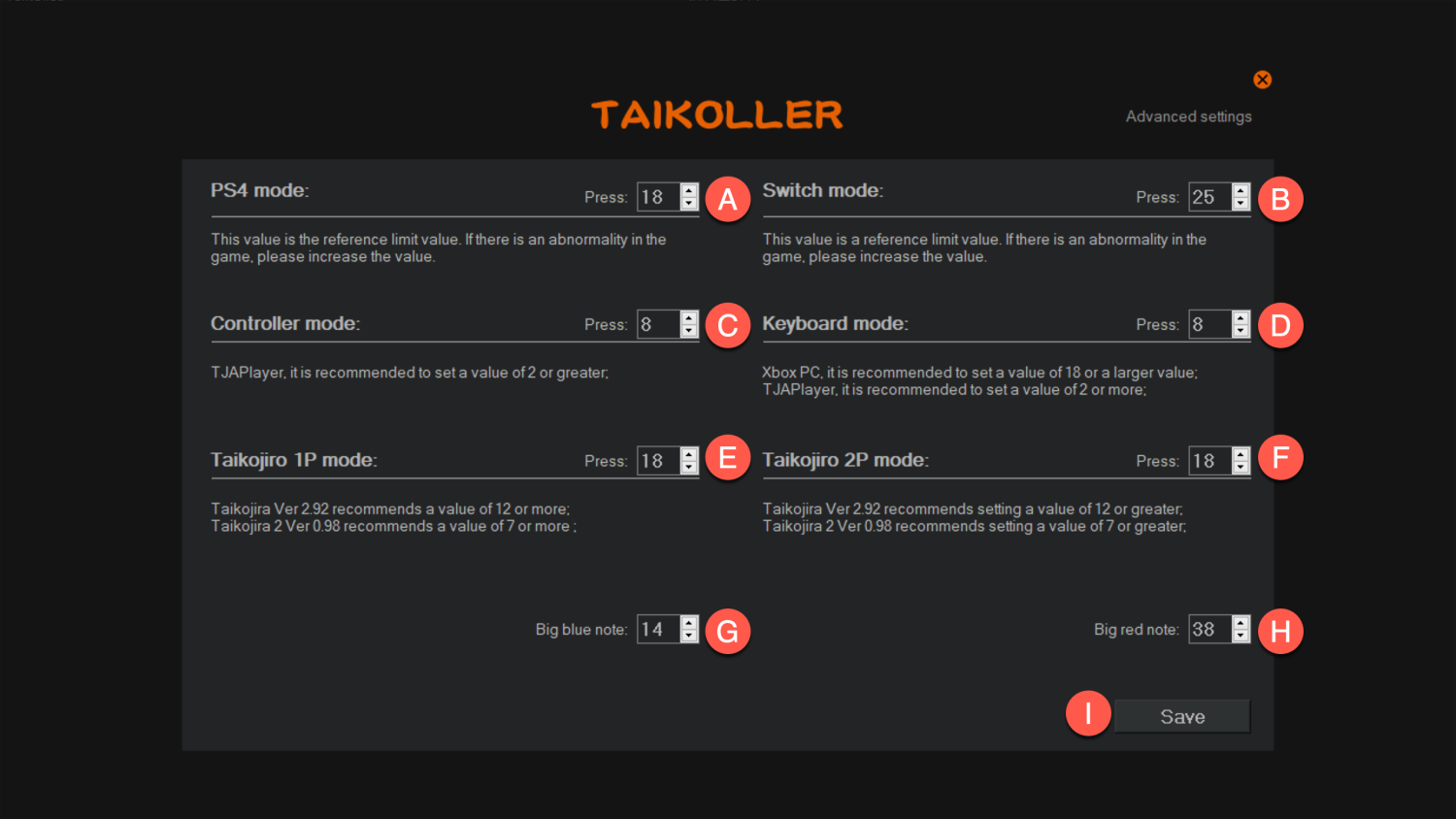
The units of A~F are milliseconds (ms).
| No. | Function Description |
|---|---|
| A | This parameter is only valid for PS4 mode. The initial value is 18ms. If there is no output for a short period of time when using PS4/5, you can increase this value. Suggested range: 18~25 |
| B | This parameter is only valid for SWITCH mode. The initial value is 25ms. If there is no output for a short period of time during use, you can increase this value. Suggested range: 25~32 |
| C | This parameter is only valid for CONTROLLER mode. If used in TJAplayer/Opentaiko, it is recommended to remap the keys in the software. Recommended range: 6-18 |
| D | This parameter is only valid for Keyboard mode. If used in TJAplayer/Opentaiko, it is recommended to remap the keys in the software. Recommended range: 6-18 |
| E | This parameter is only valid for Jiro 1P mode. If used in TJAplayer/Opentaiko, it is recommended to remap the keys in the software. Recommended range: 18-22 |
| F | This parameter is only valid for Jiro 2P mode. If used in TJAplayer/Opentaiko, it is recommended to remap the keys in the software. Recommended range: 18-22 |
| G | The trigger threshold required to hit the Big Blue Note 100% at the same time. If you are used to hitting big blue notes staggered, you don't have to worry about it. Recommended range: 15-20. It is recommended to increase this value if both left and right blue notes are output when one "Ka" is struck. |
| H | The trigger threshold required to hit the Big Red Note 100% at the same time. If you are used to hitting big red notes staggered, you don't have to worry about it. Recommended range: 35-40. It is recommended to increase this value if both left and right red notes are output when one "Dong" is struck. |
| I | After setting, you must click Save to take effect. |