TASOLLER Options How-To Guide
1. What is TASOLLER Options?
- Compatible with TASOLLER PLUS (second-generation product); incompatible with TASOLLER (first-generation product);
- Adjusts the threshold (sensitivity) of GroundSlider;
- Modifies the output delay of GroundSlider;
- Regulates lighting brightness for both Air and GroundSlider;
- Enables switching between multiple operational modes;
- Provides real-time display of current touch-sensing values;
2. Firmware and TASOLLER Options
2.1 January 2, 2025
- Official firmware (pre-installed at factory, no longer requiring manual installation) for backup purposes.
- Files ending with "skystar" represent main control firmware;
- Files ending with "cyacd2" denote touch-sensing firmware;
- Firmware upgrade requires sequential installation of both components:
- Step 1: Upgrade the "skystar" main control firmware;
- Step 2: Upgrade the "cyacd2" touch-sensing firmware;
2.2 Steps for burning firmware
- Open the Options software;
- Connect one Type-C port of TASOLLER PLUS to the computer (the port without the lightning logo);
- Click the "Open" button;
- Find the file starting with skystar file (Files with the suffix skystar is the main control firmware);
- Click to open, and click the "Upgrade" button. It takes about 20 seconds;
- Click the "Open" button
- Find the file starting with Touch (Files with the suffix cyacd2 is the touch firmware);
- Click to open, and click the "Upgrade" button. It takes about 60 seconds;
3. How to use TASOLLER Options
3.1 Main window
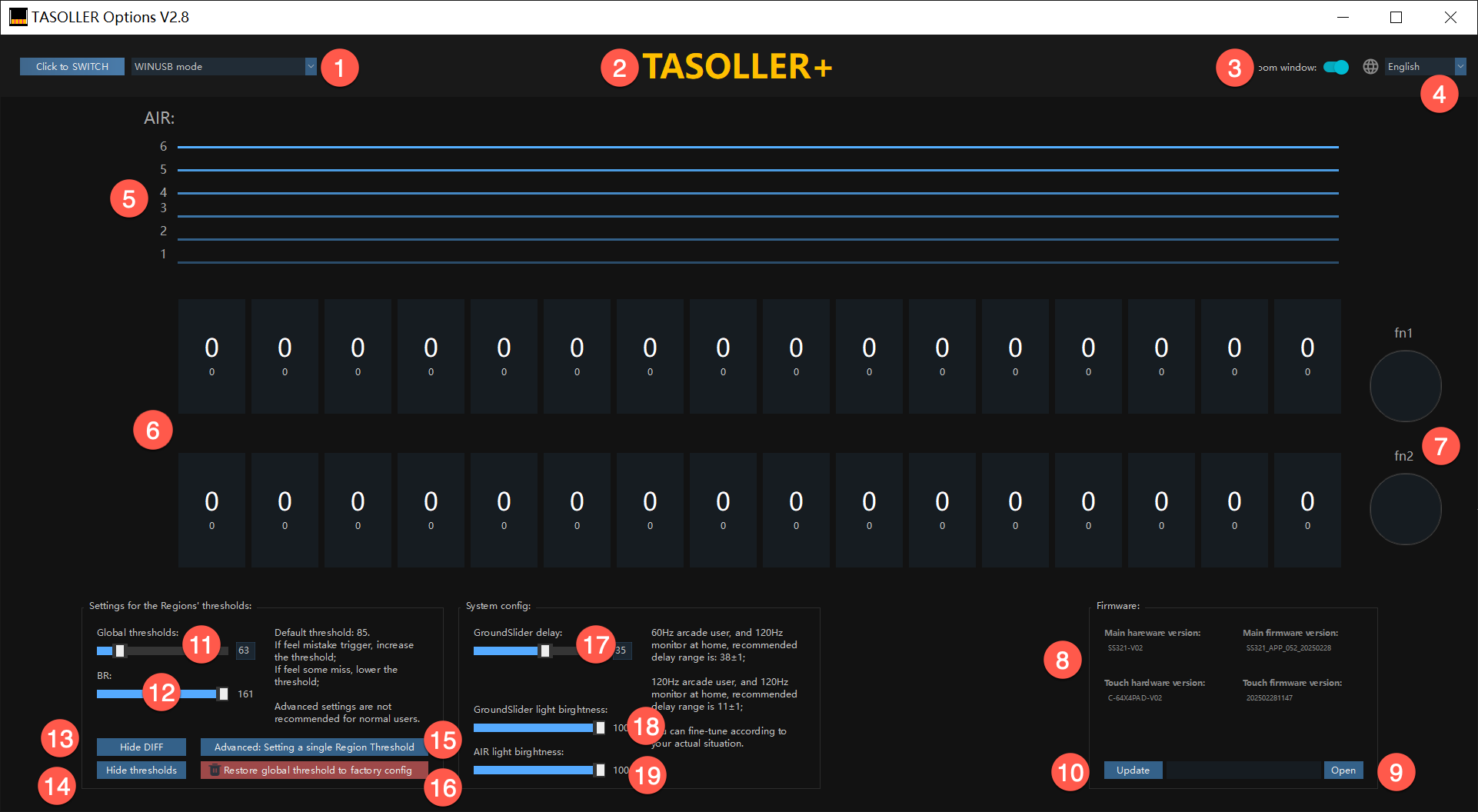
| No. | Function | Technical Description |
|---|---|---|
| 1 | Mode Switch | Optimize operational configurations through intelligent mode adaptation |
| 2 | Controller Linkage Verification | Grey: Controller disconnected Amber: Linkage established |
| 3 | Window Scaling | Active: Native 100% DPI rendering |
| 4 | Language | Real-time multilingual interface adaptation via dropdown menu |
| 5 | AIR Zone | Real-time spatial interaction visualization |
| 6 | Sensor Zone | Numerical representation of current contact surface area (Minimum detection threshold: 20 units) |
| 7 | FN1/FN2 Button | |
| 8 | Firmware information | Display current hardware/firmware version. |
| 9 | Open Firmware | Click the button to select the firmware. |
| 10 | Update | Click to start to update the firmware. |
| 11 | Global Threshold | Setup the same threshold of 32 touch buttons at same time. |
| 12 | BR Value | Tactile response curve modifier (3.1.2) |
| 13 | Raw Data Masking | Diagnostic-level touch signal visualization (Debugging exclusive) |
| 14 | Custom Threshold Masking | Advanced parameter visualization (Debugging exclusive) |
| 15 | Individual Key Calibration | Per-key sensitivity fine-tuning (Recommended for professional calibration scenarios only) |
| 16 | Factory Reset | Full parameter restoration (Critical system reset - non-destructive operation) |
| 17 | Signal Latency | Only affects touch button. If the fast ratio in the game is too high, it is recommended to modify the parameters here first. (Parameter unit is milliseconds) |
| 18 | GroundSlider light brightness | Recommended 70%-100%; |
| 19 | AIR light brightness | Recommended around 70%; |
3.1.1. Overall threshold
If you notice phantom inputs (unintended or accidental triggers caused by oversensitivity), it is recommended to increase the threshold to reduce the likelihood of these false activations.
- The base recommendation is 85;
- If you experience dropped inputs (missed or unregistered triggers due to insufficient sensitivity), lowering the threshold is advised to ensure all intended inputs are recognized.
- For optimal results, it is recommended to adjust the sensitivity settings incrementally by 1-2 units at a time and test after each adjustment to find the ideal configuration for your gameplay.
The benchmark value is obtained through testing with [Laomao Gloves]. Please use your own feeling with bare hands as the standard.
3.1.2. BR value (related to unintended or accidental triggers and sticking keys)
- Set to 20; suitable for most players with thin gloves (thin gloves have conductive fingers and can operate mobile phones);
- Set to 25; suitable for bare-handed players;
- Set to 7-10; suitable for players with very light force, or players with thick gloves (similar to maimai gloves);
The larger the value, the less sticking keys. The probability of missing keys also increases, so you can apply appropriate force. It is better to use a compromise value. Most players recommend using 20. The benchmark for thin gloves is [Old Cat Gloves].
3.1.3. Groundslider delay
Precondition: B parameter (delay parameter) in the game, please use your own parameters on the arcade (Japanese cab or International cab);
- Set 35±2, you can fine-tune according to the feeling of use; suitable for home 120Hz display, normally play on International cab 60Hz.
- Set 0~2, it is recommended to set the initial value to 2; suitable for home 120Hz display, normally play on Japanese cab 120Hz.
The delay parameter has been tested by two rating 17.4 big guys and has a strong reference value. If you find that there are more Fast in the game, increase the delay, single +1 or +2; If you find that there are more Late in the game, reduce the delay, single -1 or -2;
3.1.4. Groundslider light brightness
Adjust according to your own preferences, the recommended range is 70-100;
3.1.5. AIR light brightness
- If it is a computer USB2.0 type-A interface, it is recommended to adjust the brightness to less than 70;
- If it is a computer or charger USB3.0 type-A interface, the brightness can be adjusted at will;
- If it is a CtoC cable, the brightness can be adjusted at will (usually CtoC cables will provide 5V/3A capabilities);
3.1.6. In-game settings (important)
- Use your own A B parameters on the arcade;
- If Fast is too much, increase the delay on Options;
- If Late is too much, reduce the delay on Options;
In the game's TEST, the threshold must be 20; TASOLLER Options software can coexist with the game, switch from the game to the desktop, adjust it, and then switch back to the game.
3.2 Advanced Settings
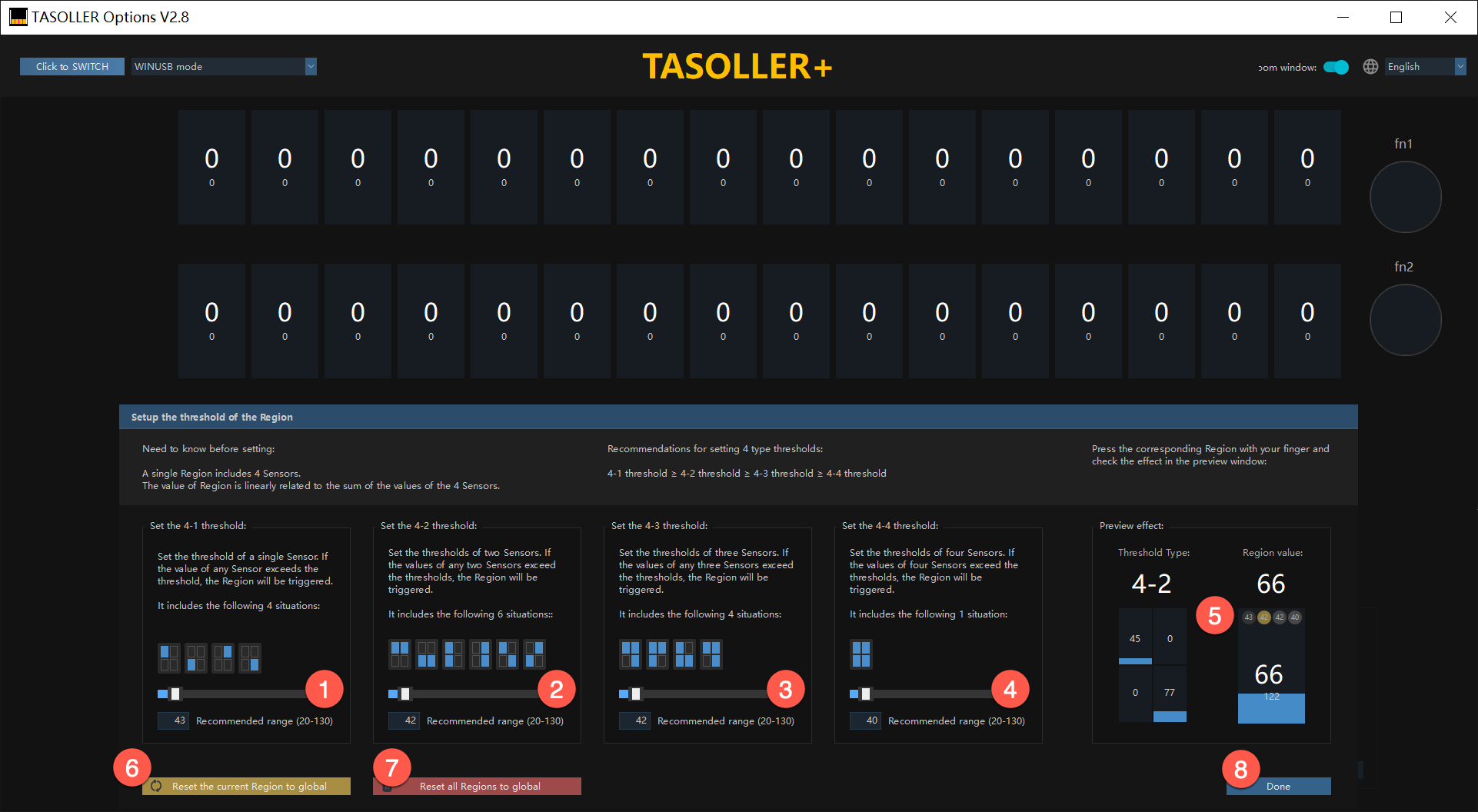
| No. | Function | Technical Description |
|---|---|---|
| 1 | Case 1 Threshold | After setting the threshold, the overall threshold will no longer affect this button. |
| 2 | Case 2 Threshold | After setting the threshold, the overall threshold will no longer affect this button. |
| 3 | Case 3 Threshold | After setting the threshold, the overall threshold will no longer affect this button. |
| 4 | Case 4 Threshold | After setting the threshold, the overall threshold will no longer affect this button. |
| 5 | Threshold Observation Window | Real-time display of the trigger values of 4 sensors; Used as a reference for settings. |
| 6 | Reset current button to global | Reset the parameters of the current button to the global threshold parameters; |
| 7 | Reset all buttons to global | Reset all modified button parameters to the global threshold parameters; |
| 8 | Done | Click to exit this window |
3.3 Keyboard Mode
3.3.1 Keyboard Mode 4K
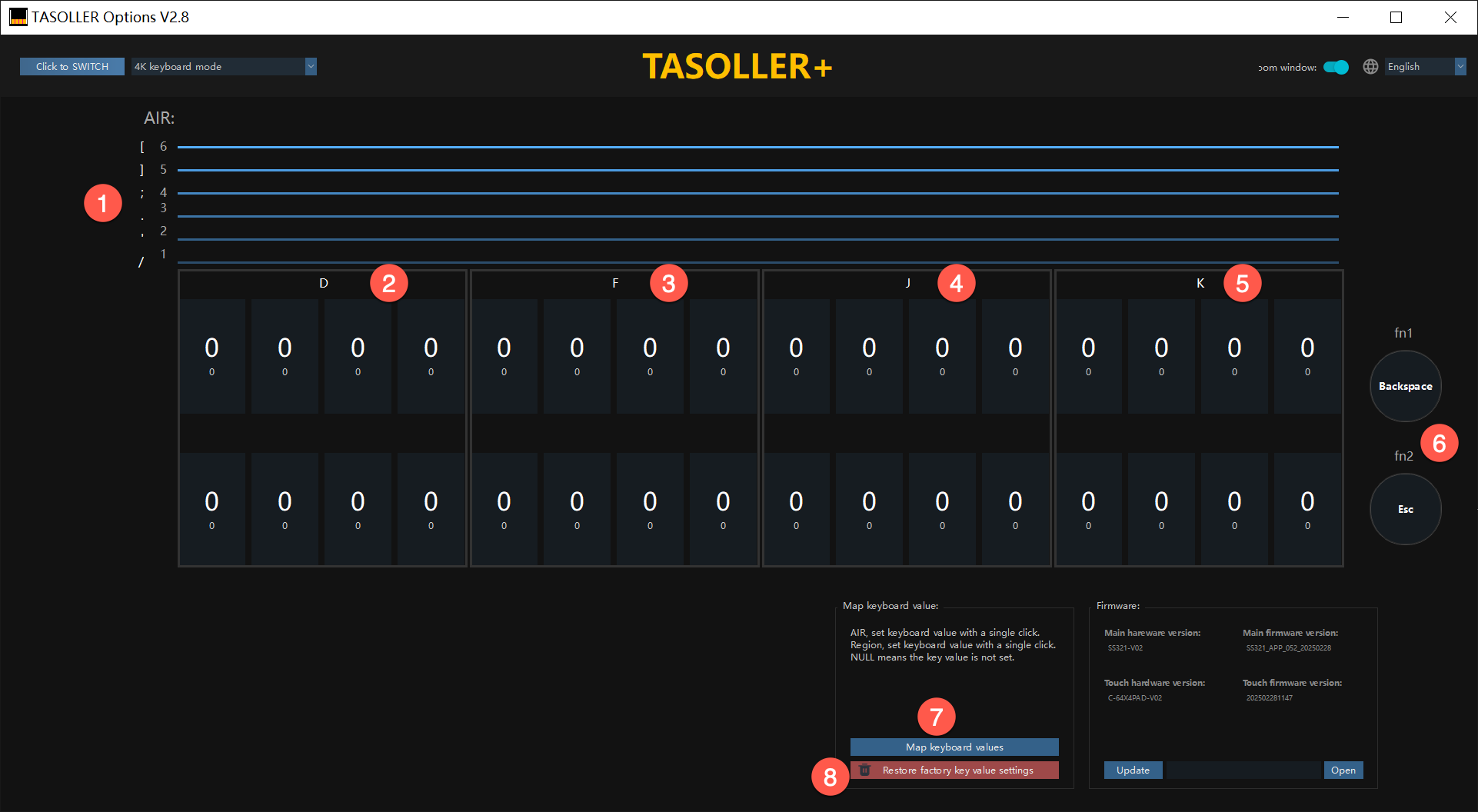
| No. | Function | Technical Description |
|---|---|---|
| 1 | 6 air mappings | The current 6 air-mapped keyboard values; |
| 2 | 4K-1 | All 4 keys output 1 key value; |
| 3 | 4K-2 | All 4 keys output 1 key value; |
| 4 | 4K-3 | All 4 keys output 1 key value; |
| 5 | 4K-4 | All 4 keys output 1 key value; |
| 6 | FN1 and FN2 key values | |
| 7 | Map keyboard values | Click the button, and a pop-up window will appear to map the key values; |
| 8 | Restore factory settings | Click the button to restore the key value mapping in the current mode; |
3.3.2 Setting key value
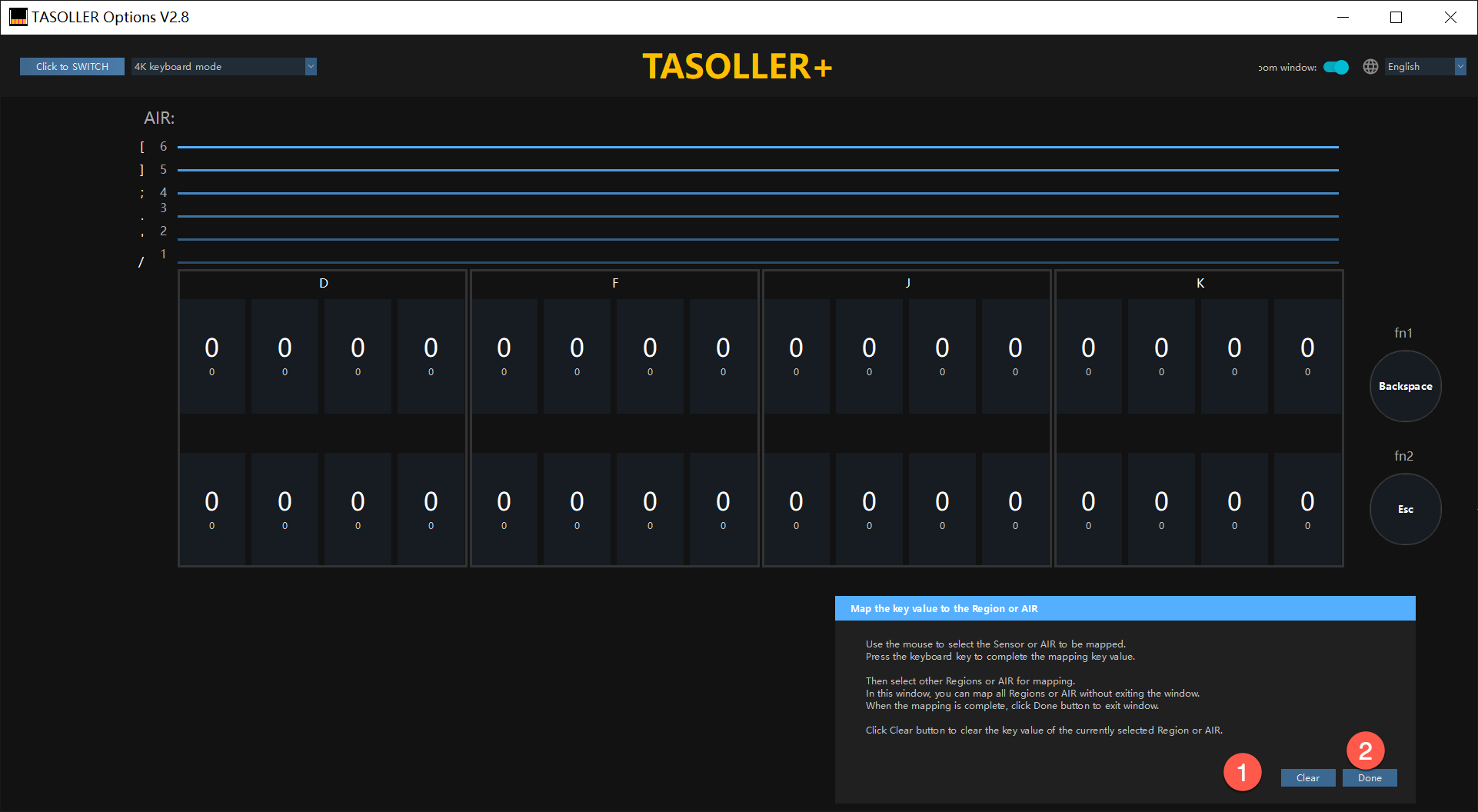
| No. | Function | Technical Description |
|---|---|---|
| 1 | Clear button | - Select the blue line of Air, or touch the button; - Click the Clear button to clear the current key value; - Press any key on the keyboard to complete the key value setting; |
| 2 | Done | After setting all the keys, click Finish to exit the setting; |
3.3.3 Keyboard Mode 8K
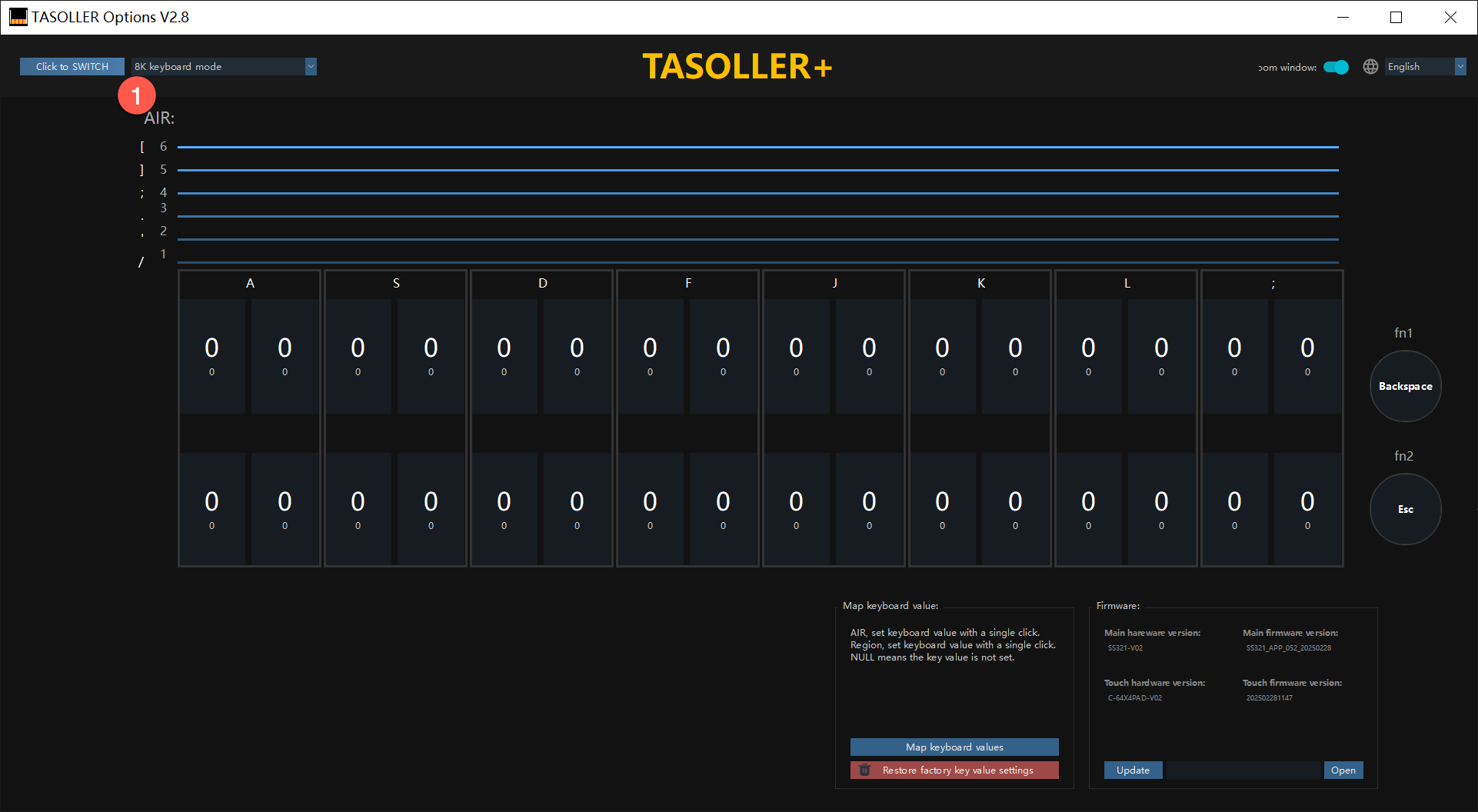
3.3.4 Keyboard Mode 16K
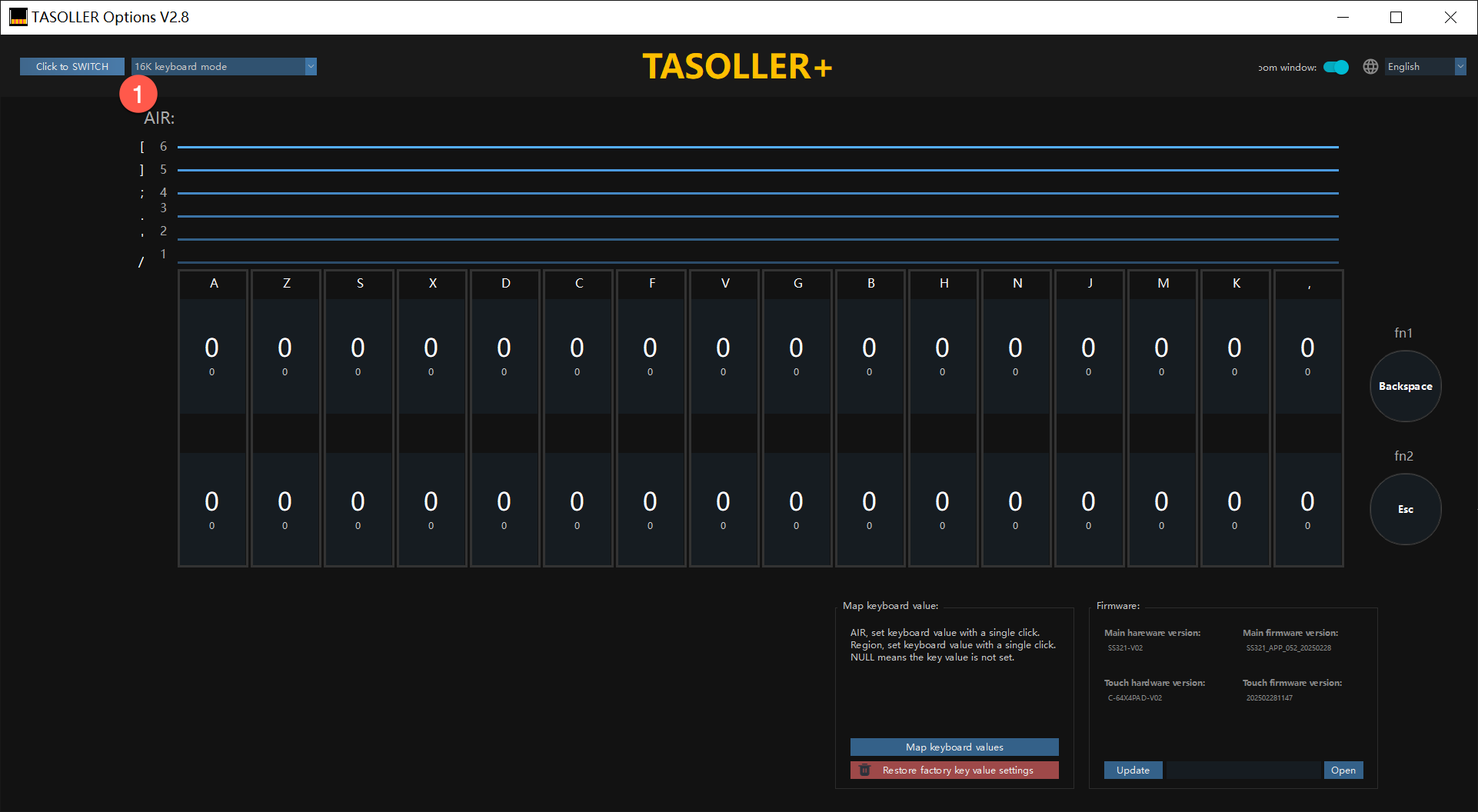
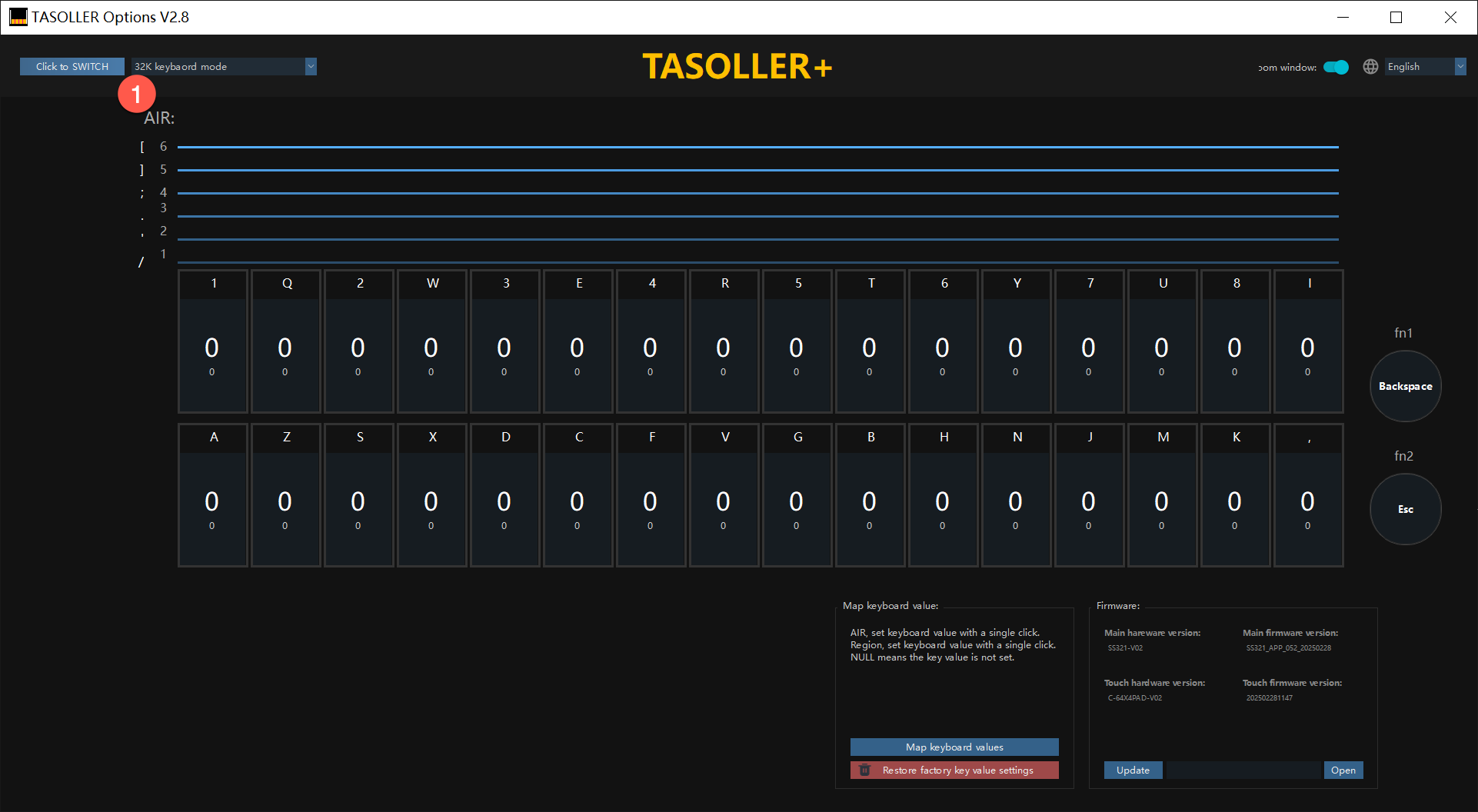
3.3.5 Keyboard Mode 32K