How to Use ONTROLLER Options
0. Download ONTROLLER Options Software and Firmware
Upgrade content:
- V35 firmware included;
- The factory firmware is V35 firmware;
1. What is ONTROLLER Options
ONTROLLER Options is a software designed by the DAO design team that can easily adjust the parameters of ONTROLLER. You can adjust the parameters to make ONTROLLER more comfortable to use.
2. How to Use
2.1 Beginning
- Connect the USB type-b cable, one port to the ONTROLLER, and the other port to the computer USB port (USB 3.0 port recommended).
- The Type-c interface can be connected or not. (If using LHS7F2 microswitch, the Type-c interface must be connected).
- Download the latest version of ONTROLLER Options.
- Unzip the package and confirm the following files:
languagepack.xml(This is the language file)ONTROLLER-Options-XXX.exe(This is the software)SS530_ONG_APP_RC_VXXX.bin(This is the factory firmware)
2.2 How to Update Firmware
- Click the "Open" button;
- Find the
SS530_ONG_APP_RC_VXXX.binfile in the directory; - Click the "Update" button;
2.3 Mode Description
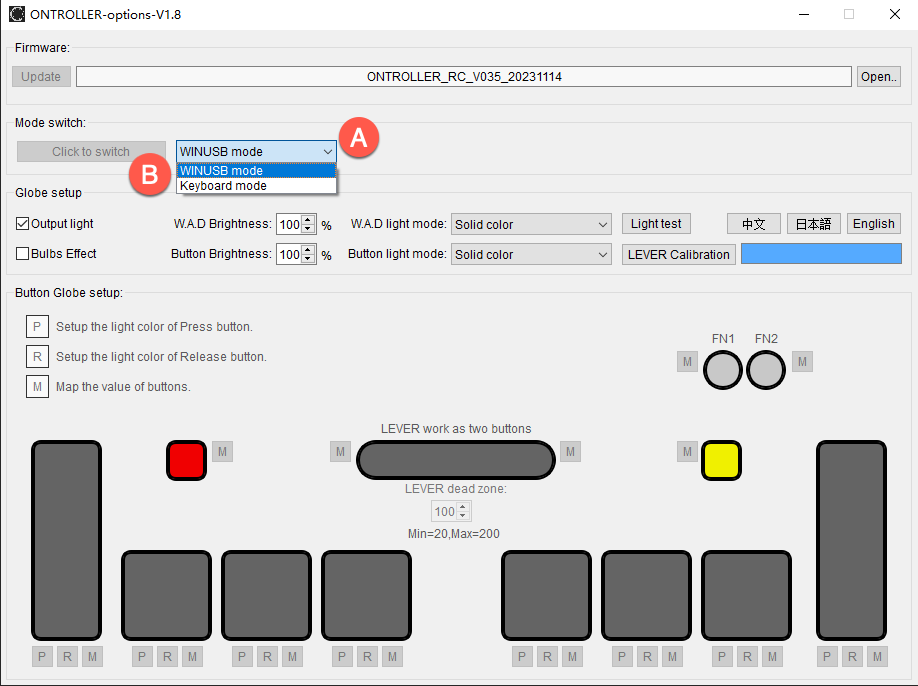
| No. | Function Description |
|---|---|
| A | Mode selection drop-down list |
| B | Click the button to switch modes |
2.4 Lever Calibration
The lever is calibrated at the factory.
If the lever is abnormal or you disassemble the lever yourself, it is recommended to recalibrate it.
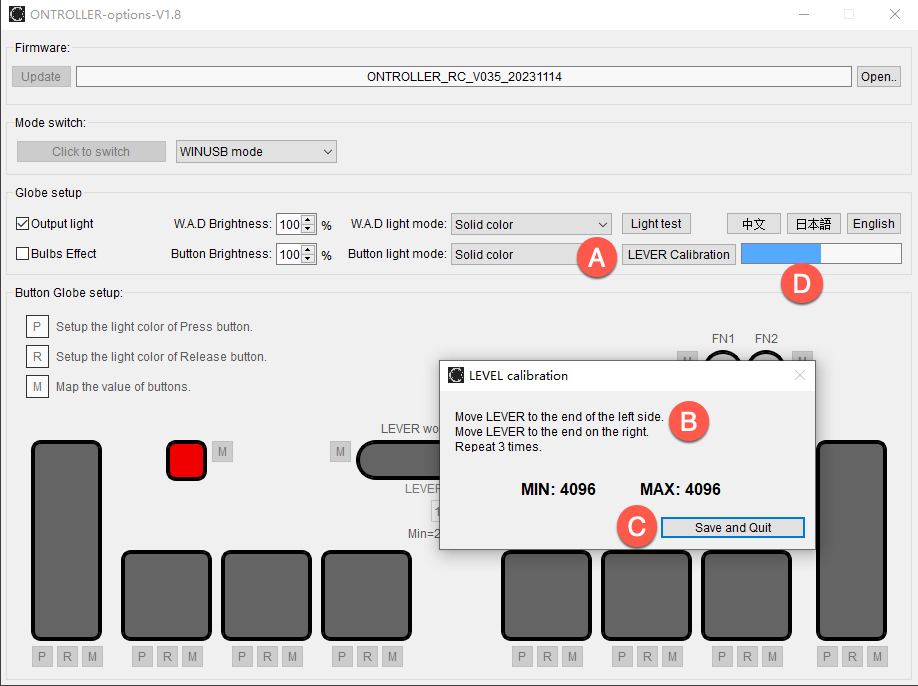
| No. | Function Description |
|---|---|
| A | Button calibration |
| B | Calibration method |
| C | After calibration is completed, click to exit |
| D | Feedback of current lever output |
2.5 Global Function Description

| No. | Function Description |
|---|---|
| A | Support for HID Output lighting, it is recommended to turn it on |
| B | Simulate incandescent light effect |
| C | Brightness of side buttons |
| D | Brightness of 6 square button lights |
| E | Set the lighting mode of the side buttons |
| F | Set the lighting mode of 6 square button lights |
| G | Click continuously to switch between RGBW to confirm that all lights are normal |
| H | Switch the UI language. If you want to use other languages, you can modify the XML file yourself |
2.6 Functions in Keyboard Mode
All keys of ONTROLLER can be customized with keyboard values, light color when the button is pressed, and light color when the button is released.
When mapping key values, center the lever. Otherwise, it will be mapped to the left or right of the lever.
If you want the light not to light up when the button is not pressed, you can set it to black RGB (0,0,0).
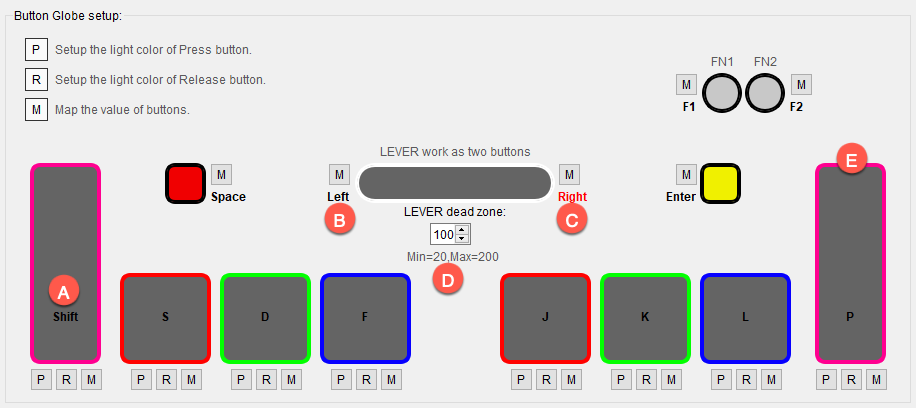
| No. | Function Description |
|---|---|
| A | Display the current key value, the default value is Shift |
| B | The key value for moving the lever to the left, the default value is Left |
| C | The key value for moving the lever to the right, the default value is Right |
| D | It is recommended not to set the dead zone between Left and Right too small, as it will easily jitter between Left and Right |
| E | The color of the outer frame is the color of the light when the current button is released |