How to Use EZTOLLER Options
1. Download EZTOLLER Options Software and Firmware
What's new in V2.5?
- Faster mode switching
What's new in V2.1:
- The default firmware: SS900_EZ5_V027_RC_20240826.skystar
2. What is EZTOLLER Options
EZTOLLER Options is a software designed by DAOdesign team, which can easily adjust the parameters of EZTOLLER5 and EZTOLLER9. You can adjust the parameters to make EZTOLLER5 and EZTOLLER9 more comfortable to use.
3. How to Use
3.1 How to Connect
- Connect the USB type-b cable, one end to EZTOLLER5 or EZTOLLER9, and the other end to the computer USB port (USB 3.0 port is recommended).
- The Type-c port can be connected or not.
- Download the latest version of EZTOLLER Options.
- Unzip the package, which contains the following files:
languagepack.xml(the language file)EZTOLLER-Options-XXX.exe(the software body)SS900_EZ5_APP_RC_VXXX.skystar(the factory firmware)
3.2 How to Burn the Firmware
- Click the "Open" button;
- Find the
SS900_EZ5_APP_RC_VXXX.binfile in the directory; - Click the "Upgrade" button;
3.3 Global Parameters
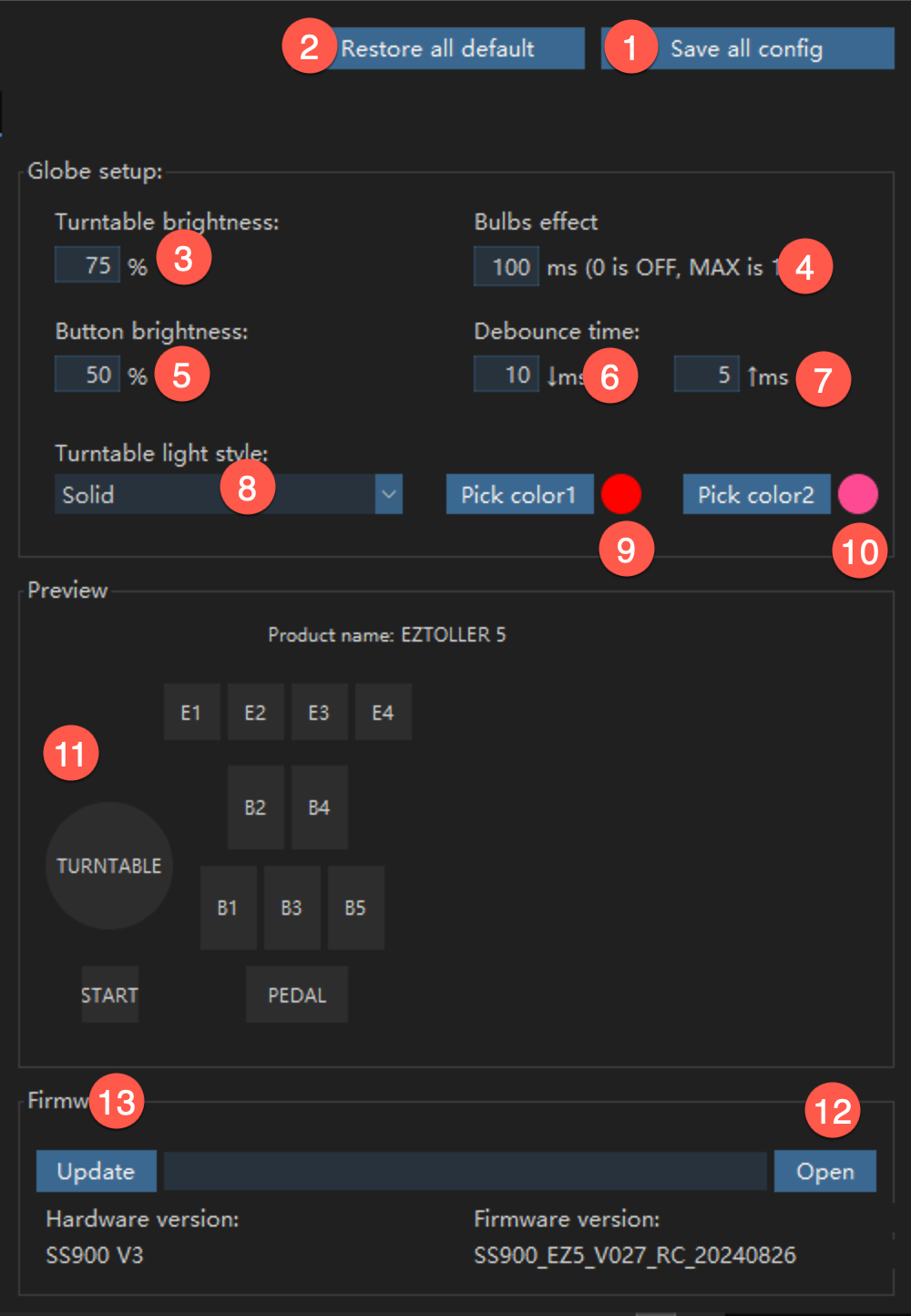
| No. | Function Description |
|---|---|
| 1 | The changes made need to be saved by clicking the Save button |
| 2 | All parameters are restored to the factory settings |
| 3 | The default value is 75%; If the type-c interface is inserted, it is recommended to adjust the brightness by 50% |
| 4 | For obvious lamp effect, adjust to 200-300; If not needed, set to 0 |
| 5 | Adjust according to your needs |
| 6, 7 | ↓ is the debounce time of pressing, which is recommended to be 5-15; ↑ is the debounce time of releasing, which is recommended to be 5-10; The debounce value can alleviate the multiple triggering of micro switches under certain circumstances, and from the software level, some problematic micro switches can still be used. The debounce time will not increase the delay. The sum of the pressing and releasing time should not exceed 32 |
| 8 | The turntable light has two circles of RGB LEDs, and different light colors can be set separately to achieve some special visual effects |
| 9 | Outer ring RGB LEDs light color |
| 10 | Inner ring RGB LEDs light color |
| 11 | Preview the response of buttons, turntable, and pedal |
| 12 | Click the Open button to select the firmware file |
| 13 | Click the Upgrade button to burn the firmware |
3.4 HID Mode
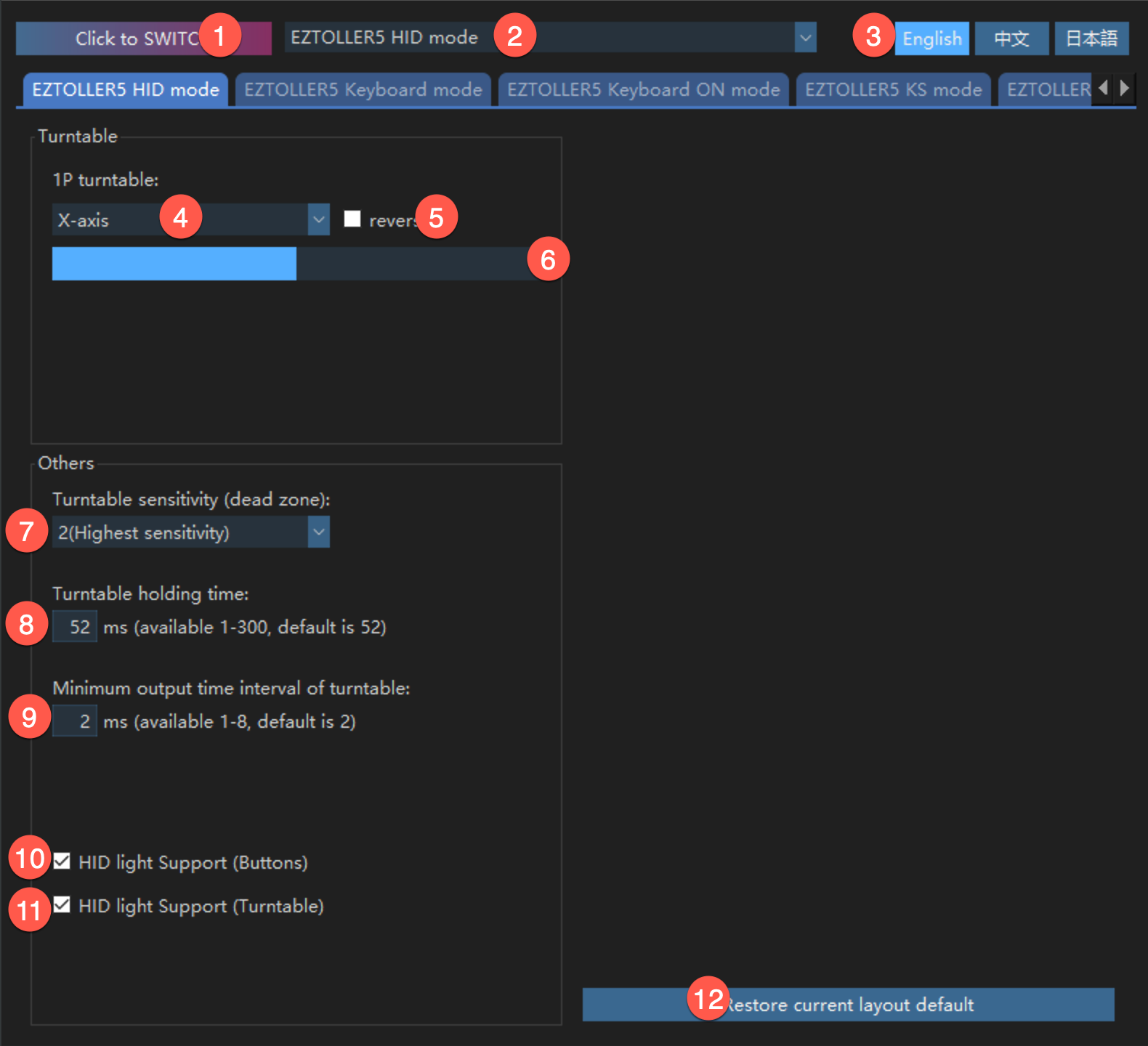
| No. | Function Description |
|---|---|
| 1 | After selecting the required mode, click the button to switch modes. When switching between HID mode and the three keyboard modes, the speed will be slower, about 6 seconds |
| 2 | Mode list |
| 3 | Switch software language. The languagepak.xml can be modified to other languages |
| 4 | Switch turntable output to X-axis or Y-axis |
| 5 | Switch axis output direction |
| 6 | Preview turntable output |
| 7 | The larger the value, the larger the angle of the turntable needs to be turned; The sensitivity can be adjusted according to habit, and 3-4 is recommended |
| 8 | The turntable will no longer output values below the set time. It is not recommended to be lower than 52 |
| 9 | Game features, it is not recommended to use other values |
| 10 | Support key lighting and game interaction, it is expected that xxx2config will support it in the future |
| 11 | Support turntable lighting and game interaction, it is expected that xxx2config will support it in the future |
| 12 | Restore the default settings of HID mode |
3.5 Keyboard Mode
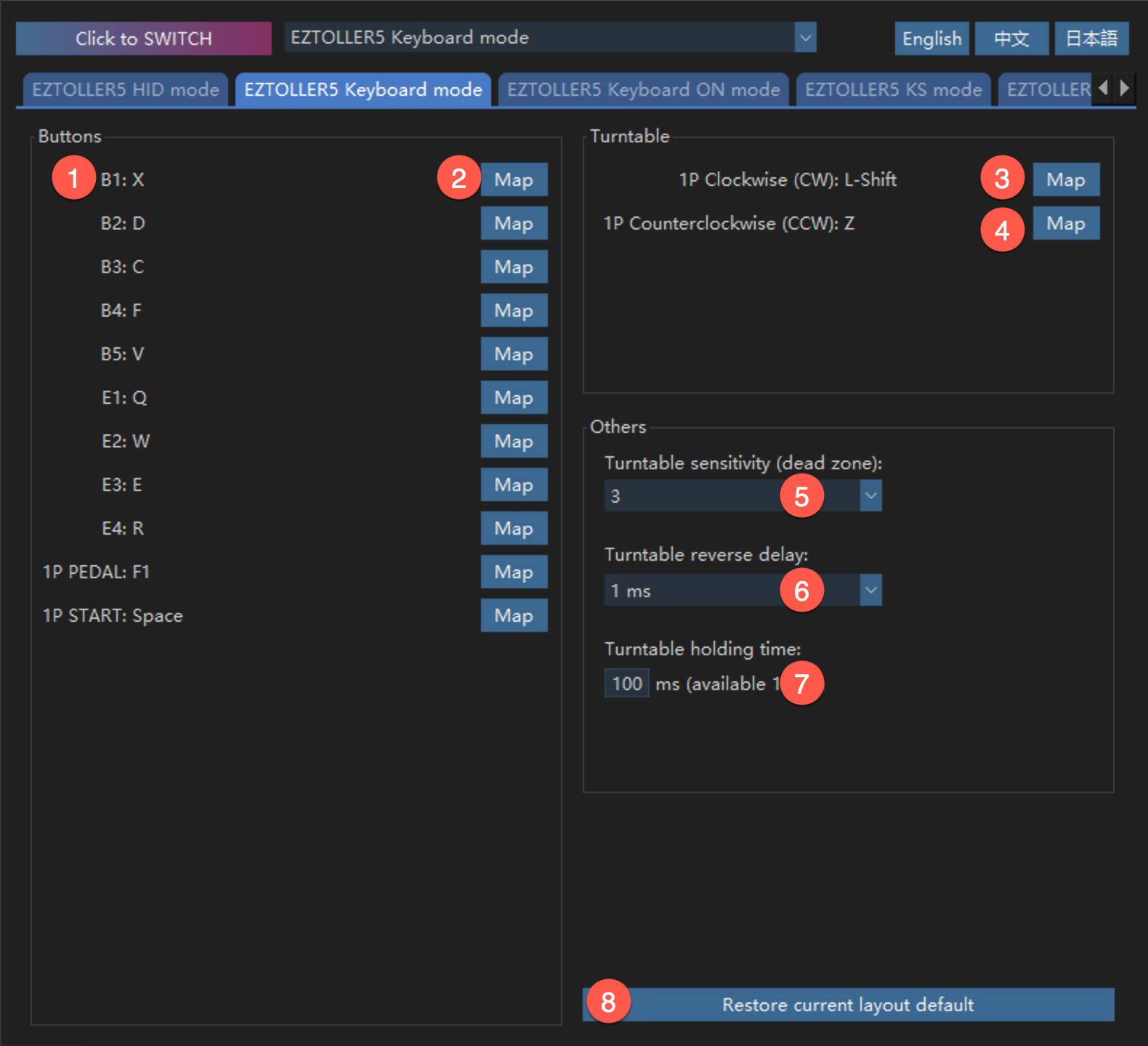
| No. | Function Description |
|---|---|
| 1 | Multiple keyboard values can be mapped to one button. (A single button supports binding 1, 2, 3, or 4 keyboard values at the same time) |
| 2 | Click the button and a pop-up window will appear, where you can bind and clear the key value |
| 3 | Map the key value of the turntable clockwise |
| 4 | Map the key value of the turntable counterclockwise |
| 5 | The larger the value, the larger the angle of the turntable needs to be rotated |
| 6 | Decide whether to increase it based on the game characteristics. Judgment basis: If the turntable is rotated back and forth at a high frequency, if there are missed keys, it is recommended to increase it |
| 7 | The larger the value, the turntable can also output the key value when it rotates slowly. The smaller the value, the turntable stops outputting the key value when it is lower than a certain speed. For Longnote, you can make fine adjustments based on the characteristics |
| 8 | Restore the current mode to the factory state |
3.6 Keyboard ON Mode
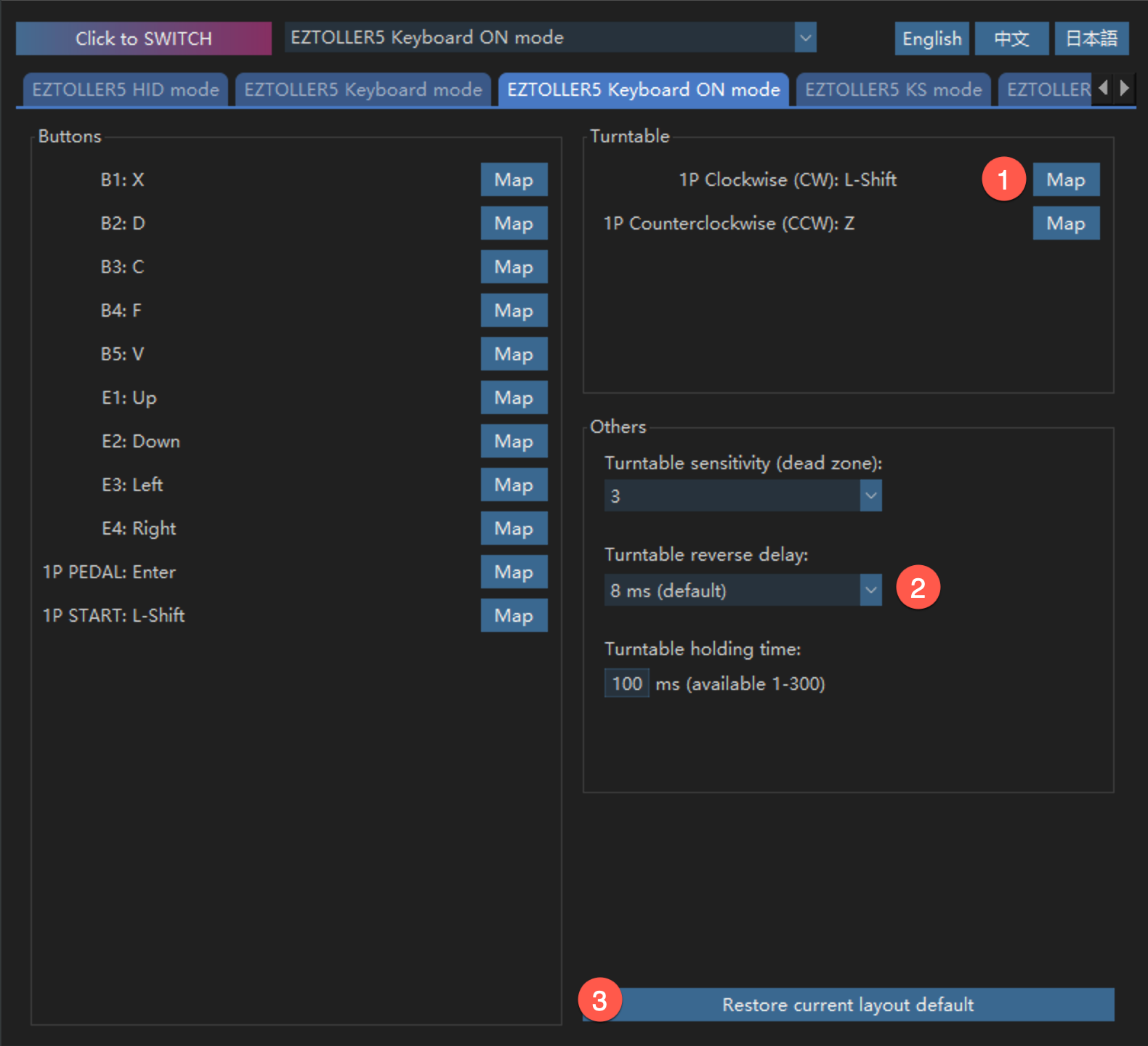
| No. | Function Description |
|---|---|
| 1 | Clockwise and Counterclockwise can map the same key value |
| 2 | According to the game characteristics of EZ2ON, if the turntable output is mapped to two same keyboard value, an 8ms delay is required. If EZ2ON is upgraded in the future, more delay may not be needed here |
| 3 | Restore the current mode to the factory state |
| PS | Keyboard ON and Keyboard mode are same. The two modes can be used as the default input for different games |
3.7 K&S Mode (Keyboard & Mouse)
| No. | Function Description |
|---|---|
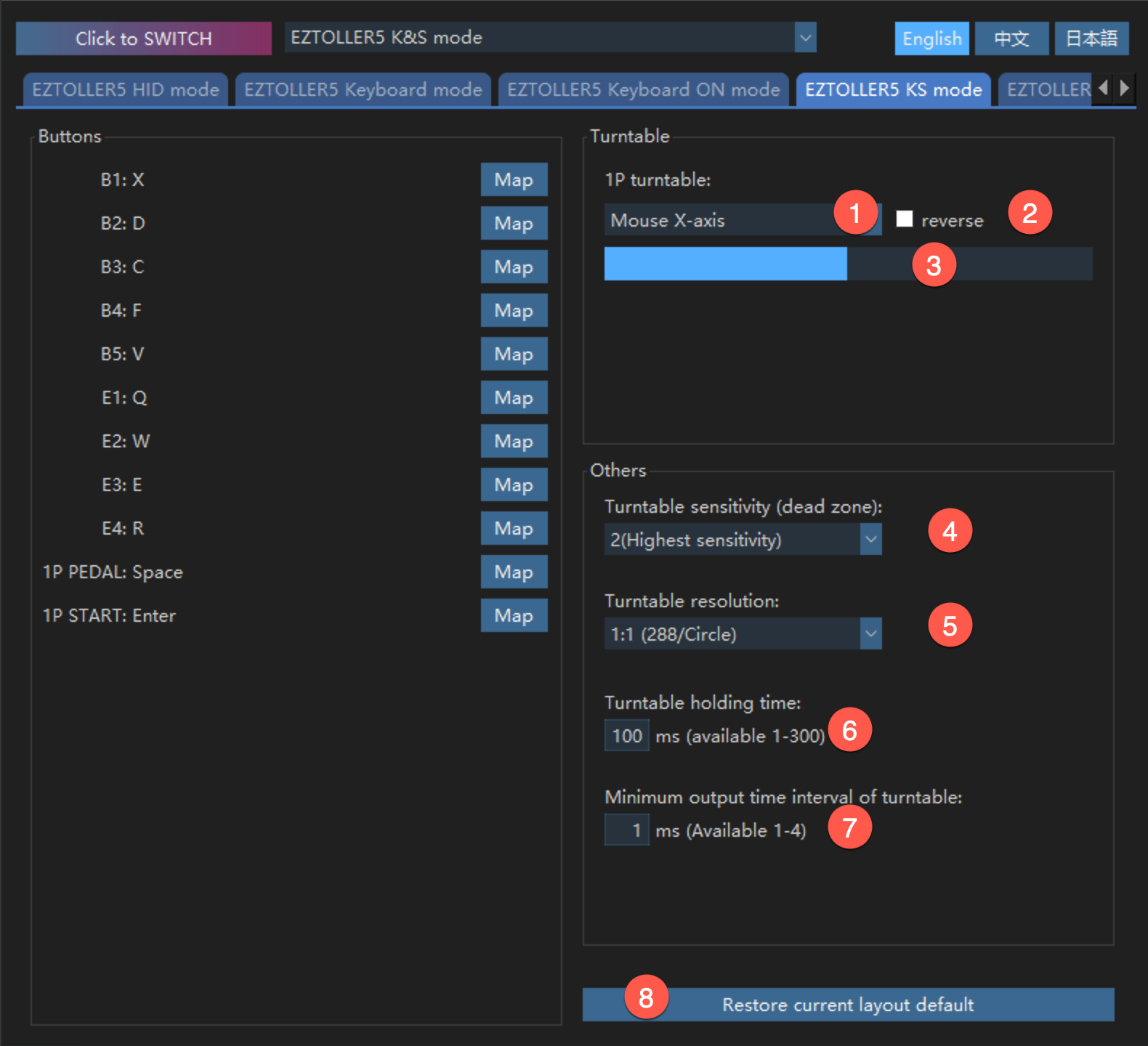
| 1 | The turntable is mapped to Mouse X-axis or Y-axis |
| 2 | Output mouse displacement is in the opposite direction |
| 3 | Preview output effect |
| 4 | The larger the value, the larger the angle of the turntable needs to be rotated |
| 5 | 1:1, one turn, output 288 mouse movements; 1:2, one turn, output 144 mouse movements; 1:4, one turn, output 72 mouse movements |
| 6 | The larger the value, the mouse value can be output when the turntable rotates slowly; The smaller the value, the mouse value will stop being output when the turntable is below a certain speed; For Longnote, fine-tuning can be done according to the characteristics |
| 7 | If there is no special situation, use 1; If there is high-frequency back and forth, the output is missed, it can be changed to a larger value |
3.8 Steam Mode
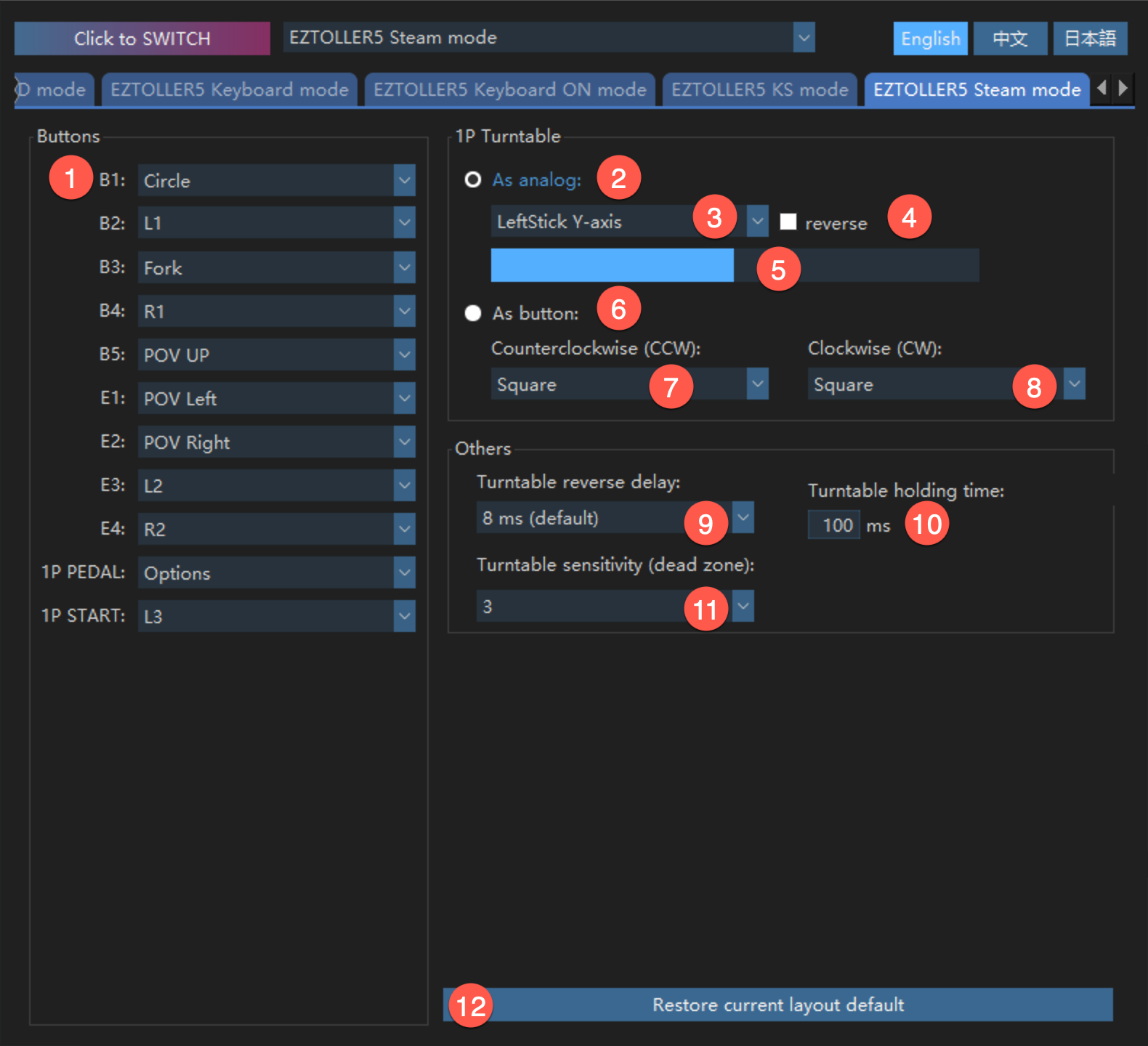
On Steam, support for Dual Stick 4 needs to be turned on.
| No. | Function Description |
|---|---|
| 1 | Press the keyboard value you want to map; You can map the same keyboard value to multiple buttons |
| 2 | Map the turntable to an axis |
| 3 | All 6 axes in Dual Stick 4 can be mapped |
| 4 | Reverse the output axis value |
| 5 | Preview the effect |
| 6 | Map the turntable to 2 buttons |
| 7, 8 | In addition to mapping to the buttons of Dual Stick 4, you can also map the direction of the joystick |
| 9 | Decide whether to increase it based on the characteristics of the game. Judgment basis: If you turn the turntable back and forth at a high frequency, if there are missed keys, it is recommended to increase it |
| 10 | The larger the value, the turntable can also output the key value when it rotates slowly; The smaller the value, the turntable stops outputting the key value when it is lower than a certain speed; For Longnote, you can make fine adjustments based on the characteristics |
| 11 | The larger the value, the larger the angle of the turntable that needs to be rotated |
| PS | Please try to avoid setting UP + DOWN, LEFT + RIGHT. In the game, it cannot be recognized at the same time. Please note |
3.9 Mapping Keyboard Value
| No. | Function Description |
|---|---|
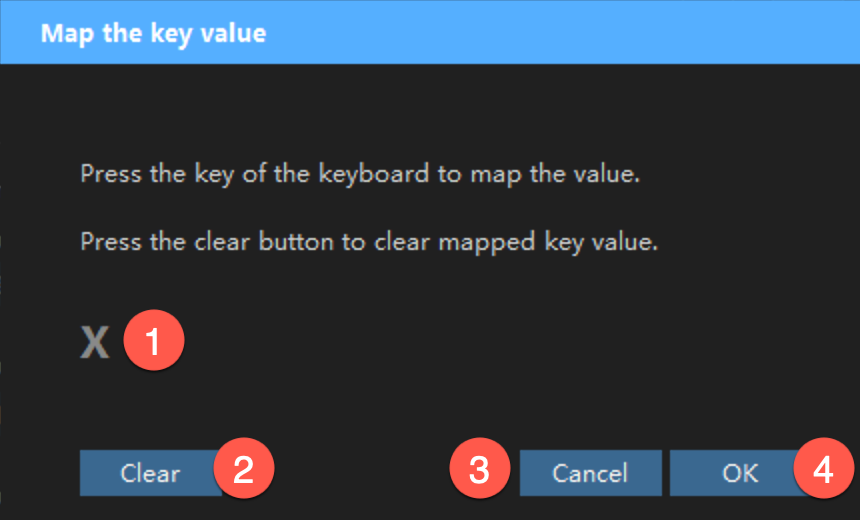
| 1 | Press the keyboard value you want to map; (up to 4 different keyboard values can be pressed at the same time) |
| 2 | You can clear the keyboard value and rebind it |
| 3 | Do not save the current mapping |
| 4 | Save the current mapping |