GITALLER firmware update Guide 20200926
Download firmware
Please fully uncompress the file before use. Do not run it directly from the archive.
Firmware upgrade tutorial
Uncompress the firmware archive
Uncompress the downloaded firmware archive to a local folder.
Confirm USB is unplugged
Confirm your GITALLER USB cable is unplugged from PC.
Enter firmware upgrade mode
Push START + SELECT buttons at the same time, do not release. Plug GITALLER USB cable to PC with your other hand. Then release the START + SELECT buttons.


Open firmware upgrade program
Open
GITALLER_firmware_APP.exe.
Load firmware file
Click the LoadFile button, find your downloaded firmware folder, select
GITALLER_firmware_V1.0_20200926.bin.

Start upgrade
Click the Start button to begin updating. Wait for the progress bar to complete.
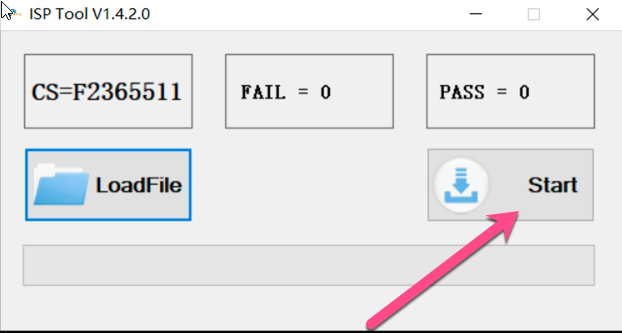

Upgrade complete
After success, replug your GITALLER USB cable (very important).
 warning
If not successful, please retry from step 3.
Features after firmware upgrade
WAILING BUTTON mode
This is the default mode, no switching needed.
Push B1+B2+B3+B4+B5+SELECT at the same time for 2 seconds — the gyroscope XYZ stops outputting, wailing_up and wailing_down output as two single button signals.

WAILING XYZ mode
This mode is for advanced players only. Beginners should not switch to this mode.
Push B1+B2+B3+B4+B5+START at the same time for 2 seconds — wailing_up and wailing_down buttons stop outputting, the gyroscope XYZ outputs normally.

Problems solved
- On GITADORA trial 1.0, START button is the START function, SELECT button is the HELP function
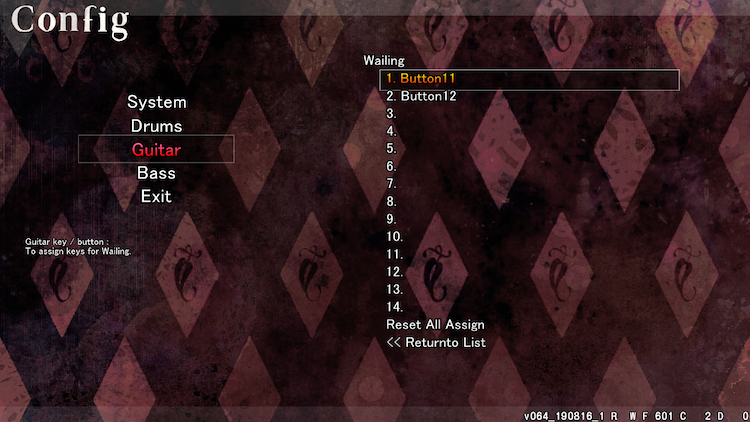
- When setting up DTXmania, please use WAILING BUTTON mode. Both wailing_up and wailing_down buttons need to be mapped in DTXmania wailing config
- When using S tools or B tools: if mapping XYZ axis, please switch to WAILING XYZ mode; if mapping wailing_up and wailing_down buttons, please switch to WAILING BUTTON mode
GITADORA trial settings
In GITADORA trial, the first button shows as 0, wailing_up shows as 10, wailing_down shows as 11.

DTXmania settings
In DTXmania, the first button shows as 1, wailing_up shows as 11, wailing_down shows as 12.
If you cannot resolve the issue, please email us. We will assist you with the upgrade.